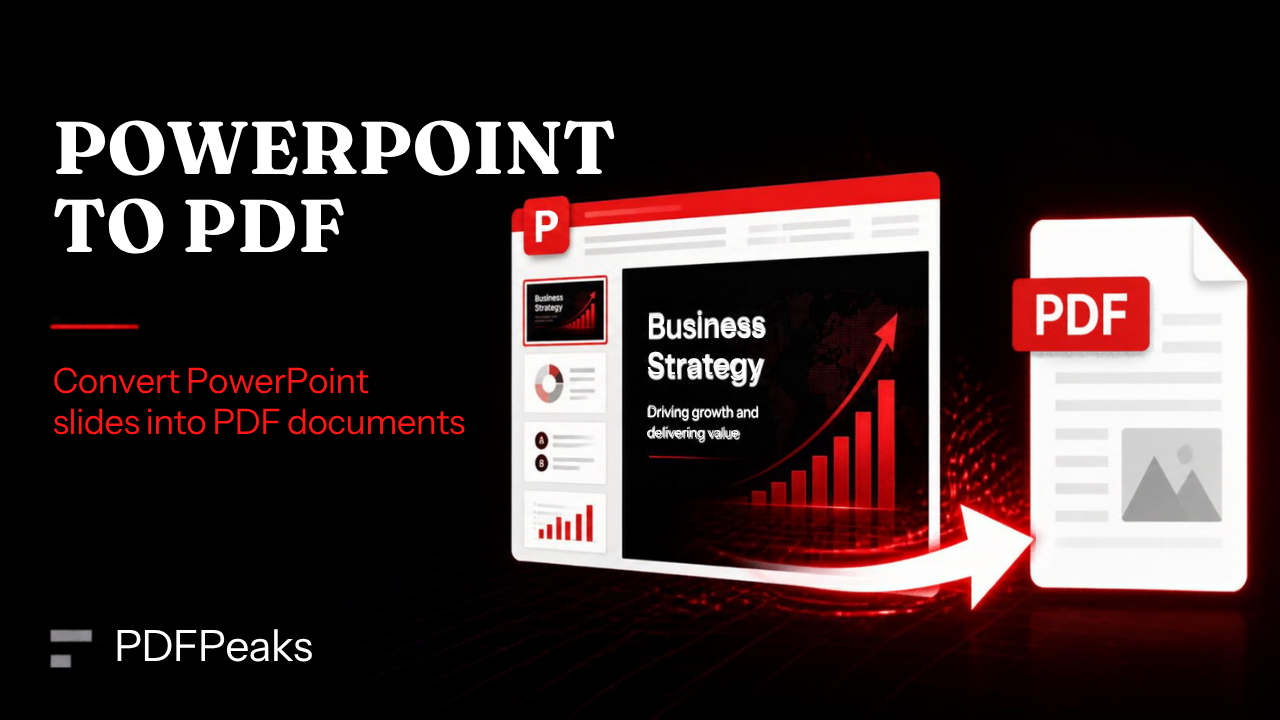
You’ve spent three evenings polishing a deck. The fonts are right, the charts line up, and then someone asks for “just a PDF.” You export it, open the file, and the title slide has drifted half an inch to the left. Sound familiar?
Converting PowerPoint to PDF should take a minute, not a battle. This guide covers six ways to do it: online, in PowerPoint on Windows and Mac, in the browser version, through Google Slides, and on your phone. It also deals with the problems people actually run into, such as swapped fonts, bloated file sizes, and missing speaker notes.
Quick answer: The fastest way to convert PPT or PPTX to PDF without installing anything is a free online converter. Upload the file to the PdfPeaks PowerPoint to PDF tool, click Convert to PDF, and download the result. If PowerPoint is already open on your computer, choose File, then Save As, and set the file type to PDF.
Which Method Should You Use?
- Any device, nothing to install: Method 1, the online converter.
- Most control over quality, handouts, and notes: Method 2 on Windows or Method 3 on Mac.
- Only a browser and a OneDrive account: Method 4.
- Your deck already lives in Google Drive: Method 5.
- You’re on your phone: Method 6.
Method 1: Convert PowerPoint to PDF Online With PdfPeaks
Pick this when you’re on a borrowed computer, a Chromebook, or a phone, or when a deck arrives by email and you just want a PDF out of it.
- Open the PowerPoint to PDF converter.
- Drag your .ppt or .pptx file into the upload box, or tap Select PowerPoint.
- Press Convert to PDF. Decks full of photos take longer, so give it a moment.
- Use Preview PDF to flip through the slides, then download the file.
A few things worth knowing before you rely on it. PdfPeaks accepts presentations up to 100 MB, and you don’t need an account. The conversion runs on LibreOffice, which handles standard layouts, text, and images well. It’s less forgiving with fonts that aren’t installed on the server and with some advanced effects, such as complex SmartArt, so flip through the result once before sending it anywhere important. If the text on your slides is real text rather than screenshots, the PDF stays searchable.
Output too big? Run it through Compress PDF afterwards. Only need part of the deck? Split PDF pulls out selected pages. Combining several decks into one handout? Merge PDF does that in a few clicks.
Method 2: Save as PDF in PowerPoint on Windows
If you have the desktop app, this method gives you the most control, because PowerPoint uses your own installed fonts and its own rendering engine.
- Open the presentation.
- Click File, then Save As (or File, Export, Create PDF/XPS Document).
- In the Save as type menu, choose PDF.
- Click Options if you want to adjust what gets exported.
- Choose a location and click Save.
The Options window is where most of the useful settings live. You can export a range of slides instead of the whole deck. You can change Publish what from Slides to Handouts, Notes Pages, or Outline View. You can include hidden slides, add bookmarks from headings, and keep accessibility tags so screen readers can follow the document.
Next to the Save button you’ll also see an Optimize for choice. Standard is right for printing and general sharing. Minimum size is better for email, though image quality drops a little.
One option is worth a warning. “Bitmap text when fonts may not be embedded” protects the look of your slides, but it turns text into pictures, so the PDF is no longer searchable. Use it only when appearance matters more than search.
Method 3: Export as PDF on Mac
PowerPoint for Mac makes this a short job. Open the presentation, choose File, then Export, and pick PDF as the file format. Depending on your version you’ll see a quality setting, such as best for printing or smaller file size. Choose the one that matches where the file is going.
There’s also a built-in fallback that works for any Mac app. Press Command+P, open the PDF menu at the bottom left of the print window, and choose Save as PDF. It’s quick, but you get fewer options than PowerPoint’s own export.
Method 4: Download as PDF From PowerPoint for the Web
If you use PowerPoint in a browser through OneDrive or Microsoft 365, open the file and go to the File menu. Look for Export or Download As, then choose PDF. Menu wording changes now and then, but the PDF option has been in the same neighborhood for years.
The browser version is handy because you don’t need the desktop app, though it has fewer settings. You can’t pick notes pages or tweak optimization here. If you need either, use Method 2 or 3.
Method 5: Convert Through Google Slides
Upload the PPTX file to Google Drive, right-click it, and open it with Google Slides. Then choose File, Download, and PDF Document (.pdf).
This works without any Microsoft software. The catch is that Google converts your deck into its own format first, so fonts, line spacing, and some effects can shift. It’s perfectly fine for a simple lecture deck. For a carefully designed pitch, one of the other methods is safer.
Method 6: Convert PowerPoint to PDF on Your Phone
There are two reliable routes.
Use a browser. Open an online converter like PdfPeaks PowerPoint to PDF in Chrome or Safari, tap Select PowerPoint, choose the file from your phone or cloud storage, and convert. Nothing to install, and it behaves the same as on a computer.
Use the PowerPoint app. If you have the mobile app, open the presentation and look for the Export or Share option in the menu. Pick PDF, then save the file or send it straight to email.
Phone tip: if a deck arrives through WhatsApp or email, save it to your Files or Downloads folder first. The upload picker finds it much faster there.
What Stays the Same and What Doesn’t
A PDF is a snapshot. Knowing what the snapshot captures saves you from nasty surprises.
What carries over:
- Slide size and layout
- Text, shapes, and images
- Charts and tables, rendered as they look on screen
- Fonts, when they’re installed or embedded
- Real text, which stays selectable and searchable
What doesn’t:
- Animations and slide transitions
- Playing video and audio (you’ll see a still frame at best)
- Speaker notes, unless you export notes pages
- Editable charts and the ability to rearrange objects
If a slide only makes sense after three animation clicks, add a final-state version of it before converting. People reading the PDF will only ever see that one frame.
Fixing the Most Common Problems
The fonts changed
This is the number one complaint. It happens when the converter or computer opening the file doesn’t have your font. Stick to widely available fonts, or embed fonts in PowerPoint through File, Options, Save, and the embed fonts setting. Exporting from the desktop app, where your fonts are already installed, avoids the issue entirely.
The PDF is huge
Photos are almost always the cause. Before you convert, compress the pictures in PowerPoint (select an image, then Picture Format, then Compress Pictures). After you convert, run the file through Compress PDF. A 60 MB deck often drops to a fraction of that with little visible loss.
The images look blurry
Choose the standard or best-quality option when exporting, not minimum size. Also check the source: a small, low-resolution image stretched across a full slide will look soft in any format.
The slides print with strange margins
PDFs keep your slide dimensions. A 16:9 slide on A4 or Letter paper leaves white bands, which is normal. In the print dialog, choose “Fit” rather than “Actual size,” or switch the slide size in PowerPoint before exporting.
My notes are missing
Notes aren’t part of a normal slide export. In PowerPoint, set Publish what to Notes Pages, or save a handout version. Online converters generally output the slide images only, and PdfPeaks does the same.
The deck is password protected
Open it, enter the password, and save an unprotected copy before converting. Afterwards you can lock the new PDF with Protect PDF.
Making Handouts and Study Notes
A slide-per-page PDF is great on screen but wasteful on paper. For printing, use PowerPoint’s Handouts option and choose how many slides to fit on a page. Three per page with lines for notes is a classic for students.
Once you have the PDF, a few small tools make it more useful. Add Page Numbers helps when a class or meeting refers to “page 14.” Watermark PDF can mark a draft or a confidential deck. Organize PDF lets you reorder pages if you shuffled your slides at the last minute.
Is It Safe to Convert a Presentation Online?
For most decks, yes, as long as the service behaves sensibly. Look for three things: the page loads over HTTPS, the privacy policy says what happens to uploaded files, and you aren’t forced to hand over personal details just to convert a file.
PdfPeaks encrypts files in transit and deletes them after processing, and you can read the details in the Privacy Policy. It doesn’t require a sign-up.
Some files shouldn’t go through any online tool, though. If the deck holds unreleased financial results, legal material, or exam papers, export it offline from PowerPoint instead. If you do use an online converter, add a password with Protect PDF before sharing the finished file.
PPT vs PPTX vs PDF: Which Format Should You Send?
PPT is the older PowerPoint format and PPTX is the current one. Converters, including PdfPeaks, accept both, so you rarely need to convert between them first.
Send a PDF when the other person only needs to read, print, or archive. It looks identical everywhere and no one can nudge a text box by accident. Send PPTX when they need to edit, present with animations, or reuse your slides.
Went the wrong way and now only have a PDF? You can turn it back into slides with PDF to PowerPoint, though complex layouts may need a little tidying afterwards.
The Bottom Line
Converting PowerPoint to PDF comes down to where you are and how much control you need. On a computer with PowerPoint, File, Save As, PDF gives you the most options. Everywhere else, an online converter is faster and needs nothing installed.
Whichever route you take, do the same two-minute check before you send: look at the title slide, scan for font swaps, and compress the file if it’s heavy. When you’re ready, try the free PowerPoint to PDF converter on PdfPeaks.
No comments yet. Start the discussion.