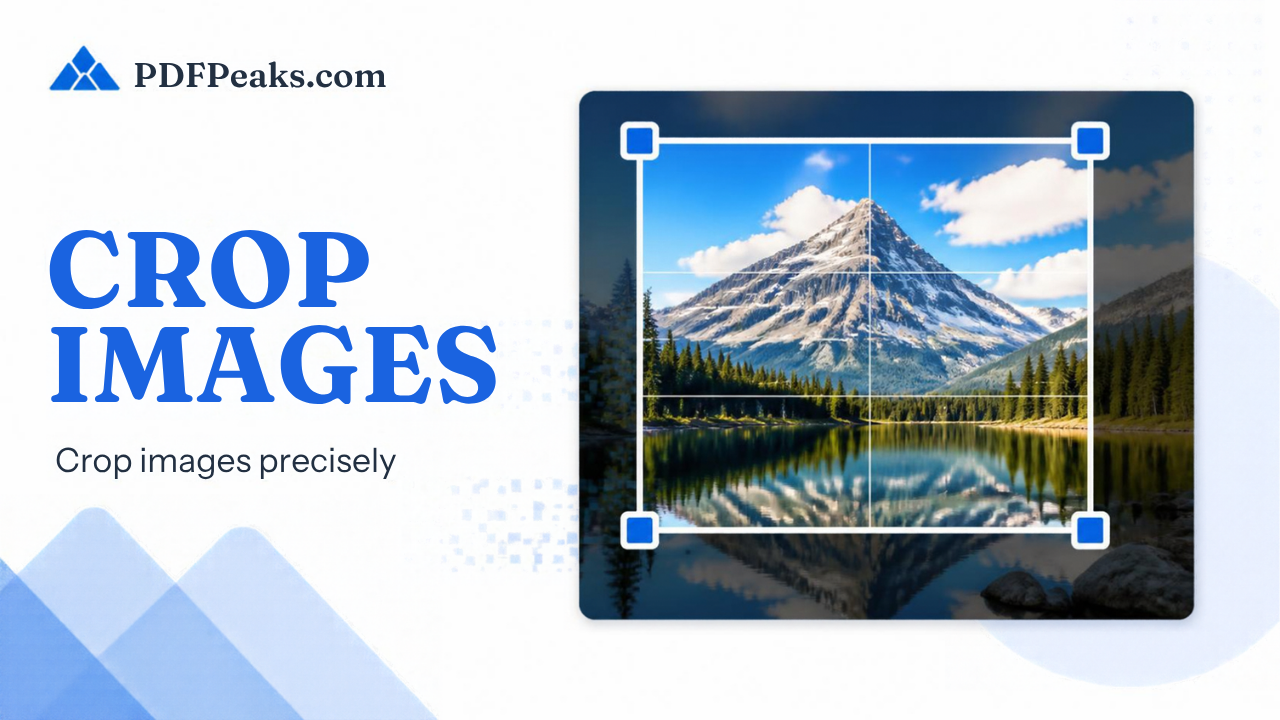
Crop Image Online Free
Free image cropper for photos and pictures — crop JPG, PNG, and WebP to an exact size or aspect ratio in your browser.
Cropping happens in your browser when possible. Server processing is only a fallback; files are deleted after processing. No human review.
Drop images here
or
JPG, PNG, WebP · Single or batch · No account required
No image selected
Upload a photo or picture to open the crop frame
Crop
Aspect & exact size
Output
Preview & download
Guide
Crop Image Online Free
Crop an image online for free with PdfPeaks. Upload a JPG, PNG, or WebP image, choose freeform cropping or an aspect ratio, set the crop area, and download the result instantly.
Crop images online quickly with the free PdfPeaks Crop Image tool. Upload a JPG, PNG, or WebP photo, choose freeform cropping or lock the crop to a popular aspect ratio such as 1:1, 4:5, 16:9, or 9:16. You can also set the crop width, height, and position in pixels to frame the exact part of an image you want to keep.
Cropping removes unwanted edges and focuses the image on the important area without stretching the remaining content. Use Crop Image when you need to change the framing or composition. When you need to change the final pixel dimensions after cropping, use the PdfPeaks Resize Image tool.
How It Works
Upload your image
Select or drop a JPG, PNG, WebP, or another supported image into the Crop Image tool.
Choose the crop area
Drag the crop handles over the part of the photo you want to keep. Choose a freeform crop or select an aspect ratio such as 1:1, 4:5, 16:9, or 9:16.
Set the size or position
Use the width, height, and position controls when you need more precise framing or a specific crop area in pixels.
Apply the crop
Click Apply Crop to remove the unwanted edges and create the cropped image.
Download the result
Save the cropped image and use it for profiles, websites, social media, documents, product listings, screenshots, or other projects.
Security & Privacy
PdfPeaks uses encrypted connections when files are transferred for processing. Uploaded files are deleted after processing according to the PdfPeaks privacy and file-handling policies. Avoid uploading files containing highly sensitive information unless you are comfortable with the site's processing and privacy terms.
Common Use Cases
Profile photos: Crop a portrait into a square or another fixed frame for profile pictures and account images.
Social media: Crop photos to common formats such as 1:1, 4:5, 16:9, or 9:16 for different social and content layouts.
Product images: Remove unnecessary edges and empty space so the main product occupies more of the frame.
Website images: Crop banners, thumbnails, cards, and content images to fit the layout you need.
Screenshots: Trim unwanted areas from screenshots and keep only the important section.
Scanned documents: Remove desk edges, shadows, or extra space around a scanned page before using OCR or converting the image to PDF.
Personal photos: Reframe a photo by removing distracting objects or empty areas around the subject.
Tips for Best Results
Choose Free or No Constraint when you want to crop an image naturally without keeping a fixed shape.
Use 1:1 for square profile photos and avatars.
Use 4:5 when you need a taller portrait crop.
Use 16:9 for widescreen thumbnails, banners, videos, and website graphics.
Use 9:16 for vertical story-style images.
Use the width, height, and position controls when you need more precise pixel-based framing.
Keep important subjects away from the edges of the crop unless the design specifically requires tight framing.
Remember that cropping removes pixels outside the crop area. It is different from resizing, which changes the dimensions of the remaining image. After cropping, use Resize Image when you need a different final pixel canvas.