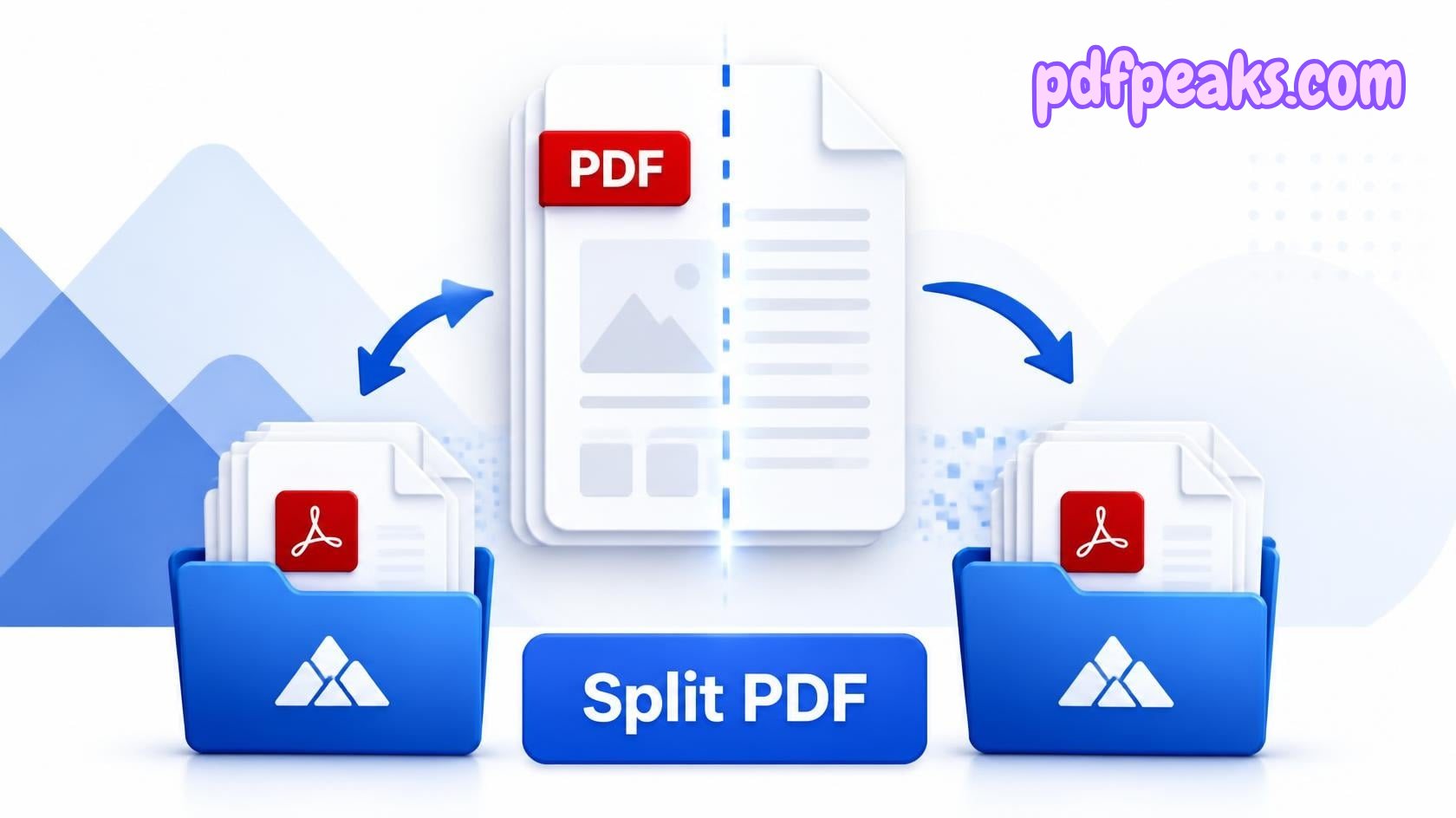
Need only a few pages from a large PDF? You don't have to print the document, delete pages by hand, or install expensive software to get them.
With an online PDF splitter, you select the pages you need, create a new PDF, and download it in a few steps. This comes up more often than you'd think — sending one chapter from a book, pulling a signed page out of a contract, separating invoices from a scanned batch, or submitting only the pages an online portal actually asked for.
Split a PDF online with PdfPeaks →
This guide covers how to split a PDF for free, when to split instead of reorganize, how page extraction works in practice, and what to do with the file once you have it.
What Does It Mean to Split a PDF?
Splitting a PDF means taking a multi-page file and creating a smaller one that contains only the pages you need.
Say you have a 50-page PDF but only need pages 12, 18, and 25. Rather than sending the whole document, you extract those three pages and save them as a new file.
A few common reasons people split PDFs:
- Pull one chapter from a long report.
- Separate invoices bundled into a single scan.
- Send only the relevant pages from a contract.
- Extract exhibits from a legal document.
- Split application documents apart.
- Shrink a large PDF before uploading it somewhere.
- Create smaller attachments for email.
- Keep selected pages for your own records.
PdfPeaks' Split PDF tool lets you preview the document, tick the pages you want, and export them as a new PDF, without touching the layout or quality of the original pages.
How to Split a PDF Online for Free
The fastest route is a browser-based splitter — no desktop install required.
Step 1: Open the PDF Splitter
Go to the PdfPeaks Split PDF tool.
It works from a modern desktop or mobile browser. You don't need Adobe Acrobat open just to pull a few pages.
Step 2: Upload Your PDF
Click Select PDF or drag your document into the upload area.
PdfPeaks shows every page as a thumbnail so you can confirm you've got the right file before doing anything else — worth double-checking when the document is a contract, an invoice bundle, or anything with sensitive content.
Step 3: Select the Pages You Need
Once the PDF loads, scan the thumbnails and pick the pages to extract.
A range like 1–3 grabs pages one through three. Individual pages such as 2, 5, 8, 11 work the same way when what you need is scattered rather than sequential.
PdfPeaks supports both in one run, which matters most on longer documents — clicking through 40 pages to find the four you actually need is slower than just selecting them from the thumbnail grid.
Step 4: Split the PDF
Click split once your pages are selected.
The tool builds a new PDF from the original pages rather than recreating the document from scratch, so formatting, fonts, and images carry over exactly as they were.
Step 5: Download the New PDF
Download the result and open it once before you send it anywhere. Check that:
- The right pages made it in.
- They're in the correct order.
- Text is still readable.
- Images and tables look right.
- Nothing you needed got left out.
That last check matters more than it sounds like it should — a missing page in a government, university, employer, bank, or visa submission usually means resubmitting the whole thing.
Extract Specific Pages From a PDF
A lot of people land on a PDF splitter looking for a page extractor specifically — one or two pages out of something much longer.
If you have a 100-page financial report and only need the pages with one particular table, extracting those pages beats sending the entire report and asking someone to scroll to page 63.
The same idea covers:
Business documents: pull only the pages relevant to one client or department.
Invoices: separate individual invoices out of a combined scan.
Education: extract a single chapter, assignment, or exercise from a course PDF.
Legal documents: save just an exhibit or a signed page as its own file.
Applications: grab only the pages a portal specifically asked for.
Research: keep the pages of a report you actually need for reference.
Splitting PDFs for Everyday Use in Pakistan
A few situations come up often enough locally that they're worth calling out on their own.
University admission portals (HEC-affiliated universities, NUST, FAST, LUMS, and others) frequently ask for one specific document — a transcript page, a fee-slip scan, a CNIC page — pulled out of a larger bundle, not the whole scan. Splitting the exact page a portal asks for avoids the back-and-forth of a rejected upload.
Visa applications work the same way. Consulates and visa centers often list specific pages of a bank statement or an employment letter, not the entire file. Extracting just those pages keeps the submission clean and avoids uploading pages you'd rather not share.
For NADRA or bank KYC steps, it's common to have a phone scan that includes both sides of a CNIC plus a few unrelated pages from the same scanning session. Splitting out just the CNIC pages before uploading saves a re-scan.
And for small business owners sending invoices over WhatsApp Business, splitting a month's combined ledger scan into individual invoice PDFs is faster than re-scanning each one separately.
Split PDF vs. Organize PDF: What's the Difference?
These two get mixed up because both involve working with pages, but they solve different problems.
Split PDF
Use Split PDF when you want to pull selected pages into a new PDF.
Example: you have pages 1–50 and only need pages 10–15. That's the Split PDF tool.
Organize PDF
Use Organize PDF when you want to reorder or remove pages within the document as a whole, not extract a subset into a separate file.
Example: your pages are out of order and you need to drag page 8 in front of page 5. That's Organize PDF.
The short version: need selected pages in a separate file? Split it. Need the existing document cleaned up or reordered? Organize it.
How to Split a Large PDF
Large PDFs get awkward to email or upload once they cross a portal's size limit.
A 200-page scanned document, for instance, can easily be too big for a form that caps uploads at 10 or 20 MB. Splitting it into sections is usually the fastest fix.
A workflow that works well:
Split → check the pages → compress if it's still too big → upload or share
If the extracted file is still oversized after splitting, run it through Compress PDF. PdfPeaks also has a full guide on how to reduce PDF file size without losing quality.
One thing to avoid: compressing the same file repeatedly. Each pass loses a bit more quality. Start from the original and use the lightest compression setting that gets you under the limit.
How to Extract Pages Without Adobe Acrobat
Acrobat is fine for heavier PDF editing, but a simple page extraction doesn't need it.
A browser-based tool gets you there in five steps: open it, upload the PDF, select pages visually, create the new PDF, download it. No install, and it works on a machine that doesn't have PDF software on it at all.
The full PdfPeaks tools collection covers the rest of the workflow too — merging, converting, editing, OCR, signing, watermarking, and compression.
What Should You Do After Splitting a PDF?
Splitting is rarely the only step. Here's what usually comes next.
Merge the pages back with something else
Sometimes you extract pages, then need to combine them with another file.
Use Merge PDF: extract pages → add another document → merge everything → download. See also How to Merge PDF Files Online for Free.
Compress the new file
Still too large after splitting? Compress it before sending. How to Compress a PDF Without Losing Quality walks through it.
Convert extracted pages to images
Some platforms want an image instead of a PDF. Use PDF to JPG, or PDF to PNG when you need sharper text or a transparent background.
Convert the extracted document to Word
Need to actually edit the content rather than just view it? Converting to Word is usually easier than editing inside the PDF. See the PDF to Word formatting guide.
Can You Split a PDF on a Phone?
Yes — a browser-based splitter works on a phone as long as the browser handles file uploads, which most current phone browsers do without issue.
This is the situation most people actually hit: a large PDF lands in email or WhatsApp and you need to forward just one or two pages of it, right now, without sitting down at a computer.
Phone workflow:
- Locate the PDF (downloads, email, or a chat app).
- Open PdfPeaks Split PDF.
- Select the file.
- Preview the pages.
- Pick the ones you need.
- Split.
- Download and share.
If you're starting from a photo instead of a PDF, PdfPeaks also has an ID card scanning workflow for CNICs, national IDs, and similar documents.
Does Splitting a PDF Reduce Its Quality?
No — extracting pages copies them as they are; it doesn't recompress or re-render the content, so quality should match the original.
File size can still shift a bit depending on how the PDF was originally built and what other tools have touched it since, but that's a size difference, not a quality loss. If it matters for your use case, open the result and compare a page against the original directly rather than assuming.
What If the PDF Is Password Protected?
A locked PDF usually blocks page operations until it's unlocked first.
Only remove protection on a file you have the right to access and modify. PdfPeaks' Unlock PDF tool handles this when you know the password and have permission to use it. For more on the security side, see How to Remove a Password from a PDF and unlocking password-protected PDFs safely.
How to Split a PDF Into Separate Files
There's a real difference between pulling selected pages into one new PDF and breaking a document into many separate files.
Say you're holding a scan of 20 invoices. You might want:
Invoice 1 → invoice-001.pdf Invoice 2 → invoice-002.pdf Invoice 3 → invoice-003.pdf
That's a different job than extracting pages 1–3 into a single document. The available output modes depend on the specific splitter interface, so with invoices or other business records, check the resulting filenames and page grouping before you hand the files to accounting or a client.
Common PDF Splitting Mistakes
Selecting the wrong page. The printed page number and the PDF viewer's page number don't always match. Trust the thumbnail preview, not the number printed on the page.
Forgetting a page. Missing one page of a contract or application can make the whole submission incomplete. Check the output before sending it.
Splitting before fixing page order. If the pages are already out of sequence, run Organize PDF first.
Sending an oversized file anyway. Check the output size after splitting and compress it if the destination has a strict upload cap.
Sharing more than intended. With IDs, financial records, or contracts, double-check that only the necessary pages made it into the final file.
Frequently Asked Questions
How do I split a PDF for free? Open an online splitter such as PdfPeaks Split PDF, upload the document, select the pages you need, split, and download.
Can I split a PDF without Adobe? Yes. A browser-based splitter handles basic page extraction without Acrobat.
Can I extract one page from a PDF? Yes — select it and save it as a new single-page PDF.
Can I extract multiple non-consecutive pages? Yes. PdfPeaks lets you select scattered pages in one run instead of splitting them out one at a time.
Does splitting damage the original file? No, the source file is untouched. Keep a backup of anything important regardless.
Can I split a PDF on Android or iPhone? Yes, from a supported mobile browser — upload, select pages, split, download.
Is there a file size limit? Guest uploads on PdfPeaks are capped at 100 MB; higher limits apply on paid plans.
Split PDF or Organize PDF — which one do I need? Split PDF pulls selected pages into a new document. Organize PDF reorders or removes pages within the file you already have.
Final Thoughts
You don't need to print a large PDF just to hang onto a few pages from it.
A free online splitter saves real time on contracts, invoices, assignments, reports, application packets, scanned documents, or any file where you only need part of it.
The short version: upload → select pages → split → review → download.
From there, PdfPeaks covers the rest of the workflow too — compress the file, merge it with something else, convert pages to JPG, convert to Word, or browse the full collection of PDF and image tools.
No comments yet. Start the discussion.