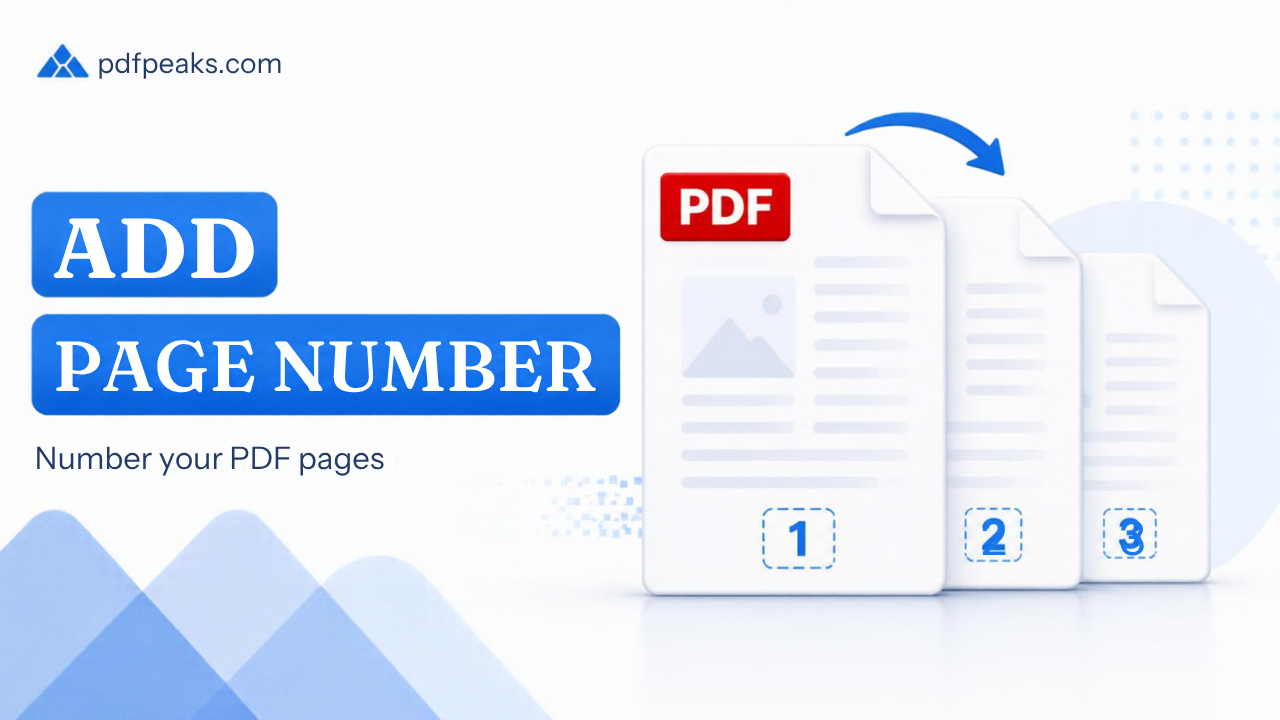
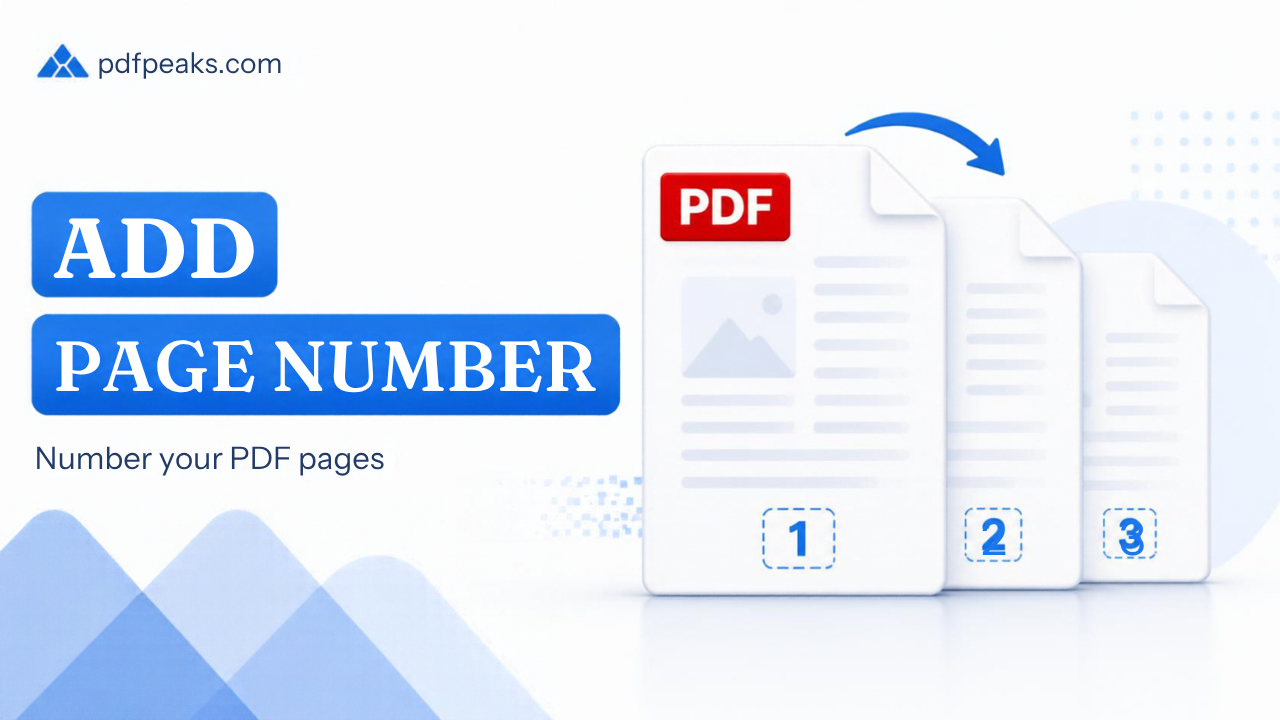
Page numbers sound like a formatting detail until someone on a call says "look at the paragraph near the bottom of page seven" and nobody can find it, because half the room has an unnumbered file and is counting by hand.
Adding them to a finished PDF takes a minute. The part people get wrong is when they do it.
Why number the PDF instead of the Word file
Word and Google Docs both number pages perfectly well, so the obvious question is why you would do it at the PDF stage at all.
Three situations where you have no choice. The document is a merge of several files, so the numbering from each source restarts and none of it is continuous across the packet. The document is a scan, so there is no source file with a footer to edit. Or the source file belongs to someone else and all you were sent is the PDF.
Merged packets are the common one. You combine a cover letter, a CV, three certificates, and an experience letter into one file, and the internal numbering of each piece is now meaningless. Numbering the assembled PDF gives you one sequence that runs from the first page to the last.
Adding the numbers
Open Add Page Numbers, upload the PDF, choose where the numbers should sit on the page, apply, and download the numbered file. The tool writes the numbers onto the pages, so they travel with the document wherever it goes.
A few choices worth thinking about before you click.
Bottom centre is the safe default and the one most readers expect. Bottom right suits documents that will be printed single sided and flicked through. Top corners get risky, because plenty of scanned documents already have letterhead, reference numbers, or a stamp up there and your number lands on top of it.
Look at your own margins first. A tight bottom margin, which is common on scanned government forms and older certificates, means a footer number can overlap the last line of text. If the file is going to a court, a university, or a client, check the first and last page of the output before you send it.
Do it last
Page numbers are a printed mark on the page, not a live field. They do not update themselves.
That means any page you insert, remove, or reorder after numbering leaves you with a document where the printed numbers no longer match the actual sequence, which is worse than having no numbers at all. A reviewer who spots page 6 followed by page 6 assumes the file has been tampered with.
So run your merging, splitting, reordering, and rotating first. Get the document into its final shape. Then number it, and then compress it if you need to hit a size cap.
If you do end up renumbering, go back to the version without numbers rather than stacking a second set on top of the first.
Reports, theses, and submissions
University submissions are where numbering is checked most strictly in Pakistan. Thesis and report formatting guidelines usually specify where the number sits and which pages carry it, and departments do send documents back over it.
The convention most guidelines follow is that front matter, meaning the title page, declaration, acknowledgements, and contents, uses roman numerals, and the main body restarts at 1 in arabic numerals. An online numbering tool applies one continuous sequence, so if your department requires the split, the practical approach is to number the two parts as separate PDFs and merge them afterwards with Merge PDF.
Check your own department's handbook rather than assuming. These rules vary between universities and sometimes between departments in the same university.
Contracts, tenders, and evidence packets
Anywhere a document might be disputed, numbering is about accountability rather than convenience. Numbered pages make it possible to say a page is missing, and they make it much harder to quietly swap one out.
Tender submissions frequently require numbered pages, sometimes with a signature or initial on each one. If that applies to you, number first, then initial the numbered pages with Sign PDF so the two match up.
For legal exhibits, number the assembled bundle in one pass rather than numbering each exhibit separately, or you lose the ability to refer to a single page across the whole bundle.
Check the pages are the right way up first
Numbering a sideways page puts the number along the edge, rotated with everything else, which looks worse than leaving it off.
If your scan has mixed orientations, fix those before you number. That is covered in how to rotate a PDF and save it permanently. The same goes for page order: sort it out with Organize PDF before the numbers go on.
No comments yet. Start the discussion.