How to Compare Two PDF Files Online for Differences (Free)
Need to know what actually changed between two PDF files?
Comparing documents by hand gets old fast once a file runs into dozens or hundreds of pages. A sentence gets reworded, a paragraph disappears, a new clause gets slipped in — and none of it jumps out just from scrolling.
Instead of opening two PDFs side by side and checking every page yourself, a PDF comparison tool can analyze both versions and show you exactly where they differ.
Compare two PDF files with PdfPeaks →
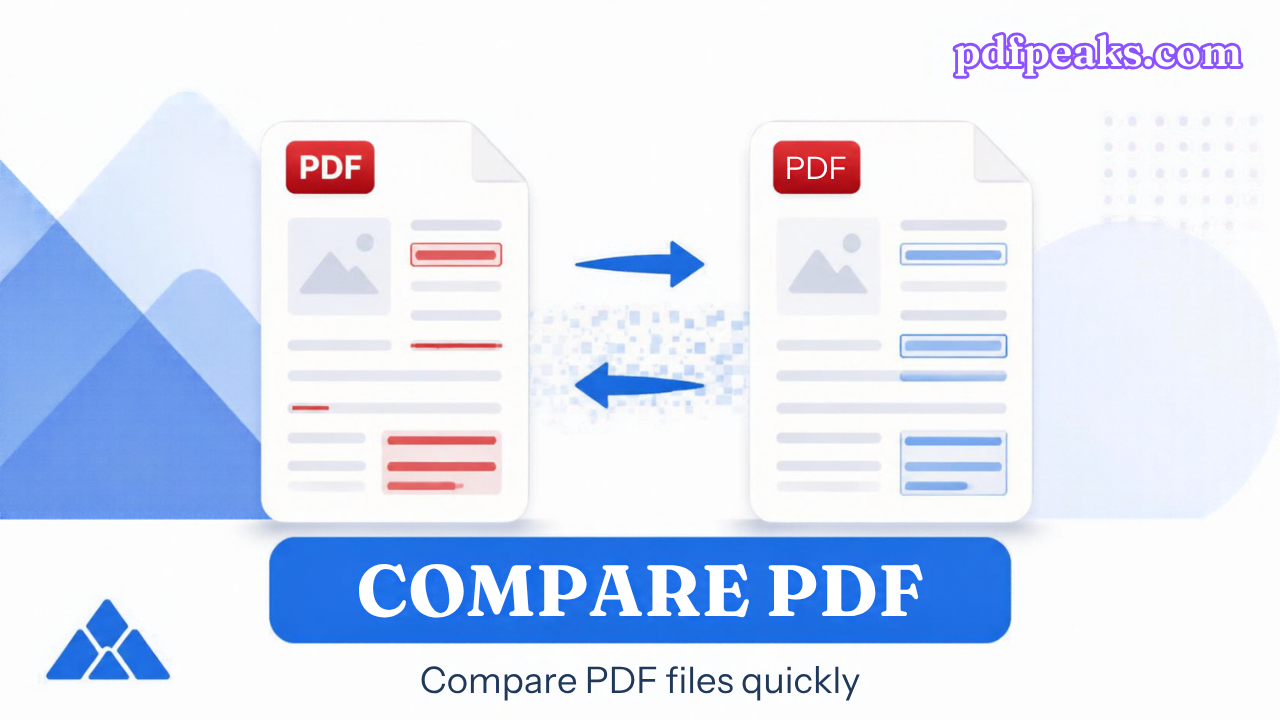
PdfPeaks Compare PDF takes an original PDF and a revised PDF, compares the text, and shows you the differences page by page. Added text shows up in green, removed text in red.
This guide covers how to compare two PDFs online, what the comparison can and can't catch, where it's actually useful, and how to get a cleaner result.
What Is PDF Comparison?
PDF comparison means analyzing two versions of a document to find what's different between them.
Say you have:
Version 1: Contract.pdf Version 2: Contract-Revised.pdf
You need to know whether anything that actually matters changed. A comparison tool can surface:
- Added words or sentences
- Removed text
- Changed wording
- Modified sections
- Page-level differences between versions
For contracts, reports, policies, papers, or specs that have been through more than one round of edits, that's a lot faster than reading both copies start to finish.
How to Compare Two PDF Files Online
You can do this entirely in the browser — no need to read both files end to end.
Step 1: Open the PDF Comparison Tool
Go to the PdfPeaks Compare PDF tool. It's built specifically around two files: an original and a revised version.
Step 2: Upload the Original PDF
Upload the baseline file — the version you're comparing everything else against. For example, Contract-v1.pdf.
Step 3: Upload the Revised PDF
Upload the second file, e.g. Contract-v2.pdf. Double-check you've picked the right one — comparing the wrong pair gives you a confusing result even though the tool itself worked fine.
Step 4: Start the Comparison
Click Compare PDFs. PdfPeaks reads both files and runs a page-by-page text comparison.
Step 5: Review the Differences
Added text appears in green, removed text in red — far faster to scan than flipping between two PDF viewers looking for what moved.
Step 6: Download the Comparison Report
Download the report where that option is available, and give the output a manual read before you approve or sign anything important based on it.
What Can a PDF Comparison Tool Actually Detect?
A comparison tool is only useful if it surfaces real content changes instead of making you read line by line anyway. Depending on how the document is built, it can catch:
Added text
Wording that wasn't in the original. "Payment must be made within 30 days" becoming "Payment must be made within 15 days" is exactly the kind of change that's easy to miss on a skim and expensive to miss in practice.
Removed text
A clause or section that was in the original but isn't in the revision — worth catching in contracts, policies, or terms and conditions specifically, since removals are easier to overlook than additions.
Changed wording
The paragraph structure stays the same but a handful of words shift. In a legal, financial, or compliance document, a handful of words is sometimes the whole point.
Page-by-page differences
Knowing which pages changed lets you skip straight to them instead of reading a 60-page manual cover to cover.
When Should You Compare Two PDF Files?
A few situations where this is worth doing instead of reading both copies manually.
Contract versions
Contracts go through multiple rounds before anyone signs. Comparing Contract-v1.pdf against Contract-v2.pdf can surface changes to payment terms, dates, responsibilities, termination clauses, confidentiality language, deliverables, or duration — the kind of clauses that actually decide whether the deal is still the one you agreed to. For anything high-stakes, treat the comparison as a first pass, not a substitute for reading the final version yourself.
Legal documents
Small wording changes are easy to miss in a long PDF. Comparing drafts before something gets submitted, circulated, or signed catches them before they're locked in. Once a version is approved, Sign PDF handles the signature step.
Company policies
Handbooks, HR policies, security policies, and internal procedures get revised regularly. Comparing the old version against the new one is a faster way to see what actually changed than re-reading the whole document.
Academic drafts
Between Research-Paper-Draft-1.pdf, Draft-2.pdf, and Final.pdf, comparison finds what moved between rounds without you re-reading each version from scratch.
Technical specifications
Product specs, manuals, and engineering documents get revised as requirements shift. A comparison flags what actually changed between exported PDF versions.
Reports
Monthly, quarterly, or annual reports that go through a revision pass before distribution — comparison catches wording changes before the final version goes out.
Comparing PDFs for Everyday Use in Pakistan
A few situations come up often enough locally that they're worth a specific mention.
Landlords and tenants renegotiate rent agreement terms more often than either side expects, and a "final" draft sometimes isn't. Comparing the version you first agreed to against the one you're about to sign catches a changed rent figure, notice period, or deposit clause before it's too late to raise it.
The same goes for job offer letters and employment contracts — a revised offer can quietly shift the notice period, bond clause, or salary breakdown between the first draft and the one HR sends for signature.
Small businesses handling vendor or tender documents deal with this constantly: a supplier sends a "final" quotation PDF after a round of negotiation, and comparing it against the first version confirms what actually moved before anyone signs.
And for students, a university's admission offer or merit-list PDF sometimes gets reissued with a correction — comparing the two versions is a faster way to confirm what changed than reading both cover to cover.
Can You Compare Two PDF Files for Free?
Yes. PdfPeaks Compare PDF is free for standard comparison jobs and runs entirely in the browser — no desktop software needed. It currently works on exactly two files per run: an original and a revised document.
Compare PDF Online vs. Reading Two PDFs Manually
Manual comparison is fine for a two-page document. Past that, it gets slow and unreliable fast.
Manual: open PDF A, page 1. Open PDF B, page 1. Repeat for every page in the document, hoping you don't miss the one paragraph that changed.
Automated: upload the original, upload the revision, let the tool flag what's different. You review the flagged areas instead of the entire document.
For anything that matters, the two aren't mutually exclusive — use automated comparison to find the changes fast, then read those specific spots yourself.
Can You Compare Scanned PDFs?
This is the limitation that trips people up most.
A PDF can look like it has text while actually being a stack of images — a scanned document, for instance, often has no selectable text underneath at all. Feed that into a text-comparison tool and there's little or nothing for it to actually compare.
Run scanned files through Make PDF Searchable first to add an OCR text layer — see How to Make a Scanned PDF Searchable with OCR for the full walkthrough. Then compare the OCR'd versions: scanned PDF → OCR → compare. Skipping that step and comparing two image-only scans directly usually just wastes a run.
Comparing Two PDFs With Different Page Counts
The two versions don't need to match page for page. A 20-page original and a 23-page revision — where the extra pages are a new section — compares fine; the tool just has more content to work through. How useful the result is still depends on how the documents were built and how much their structure diverged, so for anything important, look at the source files alongside the comparison output rather than trusting the diff alone.
What If the Comparison Shows No Differences?
If you're confident the documents changed but the tool isn't flagging anything, check three things before running it again.
Is there real text in the PDF? Try selecting text with your mouse. If nothing highlights, it's likely an image-only scan — run OCR / Make Searchable first.
Did you upload the right files? document-final.pdf and document-final-2.pdf look almost identical at a glance. Rename files something unambiguous — Policy-2026-01.pdf vs. Policy-2026-08-Revised.pdf — before this becomes a recurring problem.
Is the change visual rather than textual? A new logo, a swapped image, a different chart, or a reformatted layout won't necessarily show up as a text difference, because Compare PDF looks at the text content rather than doing pixel-by-pixel visual comparison.
Compare PDF vs. Merge PDF vs. Organize PDF
These sound related but solve three different problems.
Compare PDF — find what changed between two versions. Old contract vs. revised contract. Compare PDF →
Merge PDF — combine multiple files into one. An application form, a CNIC copy, a certificate, and supporting documents into a single upload. Merge PDF → · guide
Organize PDF — reorder, rotate, or remove pages inside one document. Organize PDF → · guide
Compare finds changes. Merge combines documents. Organize rearranges pages.
Compare a PDF Before Signing It
A useful habit before adding a signature to anything: compare first, sign second.
- Compare the previous PDF against the new one.
- Review what got highlighted.
- Confirm the revised terms are actually what you agreed to.
- Sign the approved version.
Sign PDF adds a visual signature; Signature Maker builds a transparent signature image if you don't already have one. For initials and dates, see How to Add Initials and a Date to a Signed PDF.
Compare → review → sign → protect.
Compare PDFs Before Sending Them
This isn't only a contracts workflow — it fits into general document review too: draft → revised → compare → approve → compress → send. Once a document's approved, Compress PDF is worth running before it goes out by email, especially when the file has large scanned images in it. See How to Compress a PDF Without Losing Quality for the details.
Privacy When Comparing Sensitive PDFs
Comparison often means uploading things you'd rather keep private — contracts, financial reports, employee records, business plans. On PdfPeaks, files move over encrypted HTTPS/TLS and sit in temporary storage before deletion.
Good practice regardless of the tool: only upload documents you're actually authorized to process, keep a secure copy of the originals, read the final comparison yourself before sharing it, and skip uploading anything sensitive that doesn't need to go through an online tool at all. Protect PDF adds password protection to the finished file if that's warranted.
Can You Compare Three or More PDF Versions?
Not in one pass — PdfPeaks compares two files per run. For a document with several revisions, chain the comparisons: v1 → v2, then v2 → v3. That gives you a clear sequence of what changed at each step instead of one comparison trying to cover every version at once.
Best Practices for Accurate PDF Comparison
Know which file is which. Mislabeling original vs. revised produces a technically correct but backwards-looking result.
Run OCR on scans first. A comparison tool can't diff text that doesn't exist yet.
Compare like with like. This works best on two versions of the same underlying document, not two unrelated files.
Still read the flagged changes yourself for anything legal, financial, or regulatory — the tool finds candidates, it doesn't make the call.
Keep the originals. A comparison report is a summary, not a replacement for the source files.
Frequently Asked Questions
How do I compare two PDF files? Open PdfPeaks Compare PDF, upload the original and the revised file, run the comparison, and review what's highlighted.
What's the best way to compare PDF files? For text-based PDFs, an automated tool is much faster than checking every page by hand. For anything critical, pair it with a manual read of the flagged sections.
Can I compare PDFs online for free? Yes — PdfPeaks' Compare PDF tool is free for standard use.
Do I need Adobe Acrobat to compare two PDFs? No. A browser-based comparison tool handles this without Acrobat installed.
Can I compare scanned PDFs? Only after OCR. Run them through Make PDF Searchable first so there's actual text to compare.
Does it catch formatting or visual changes? It compares text content, not pixel-level graphics — a new logo or reformatted layout won't necessarily register as a difference.
Can I compare contract versions this way? Yes, and it's one of the more useful applications — but treat the output as a starting point, and have important contracts reviewed by someone qualified before you sign.
Can I compare more than two files at once? Not in a single run. Compare them sequentially — v1 vs. v2, then v2 vs. v3.
Is it safe to compare confidential documents online? PdfPeaks processes files over encrypted HTTPS/TLS in temporary storage with deletion after processing. Still worth following whatever document-handling rules your organization already has.
Final Thoughts
Reading two long PDFs side by side to catch a handful of changes is a slow way to spend an afternoon, especially when most of the document didn't change at all.
The basic workflow: upload the original → upload the revision → compare → review what's flagged → approve the final version. Run OCR first if you're working from scans, and once a document's approved, PdfPeaks covers the rest — Sign PDF, Protect PDF, Compress PDF, or Merge PDF.
No comments yet. Start the discussion.