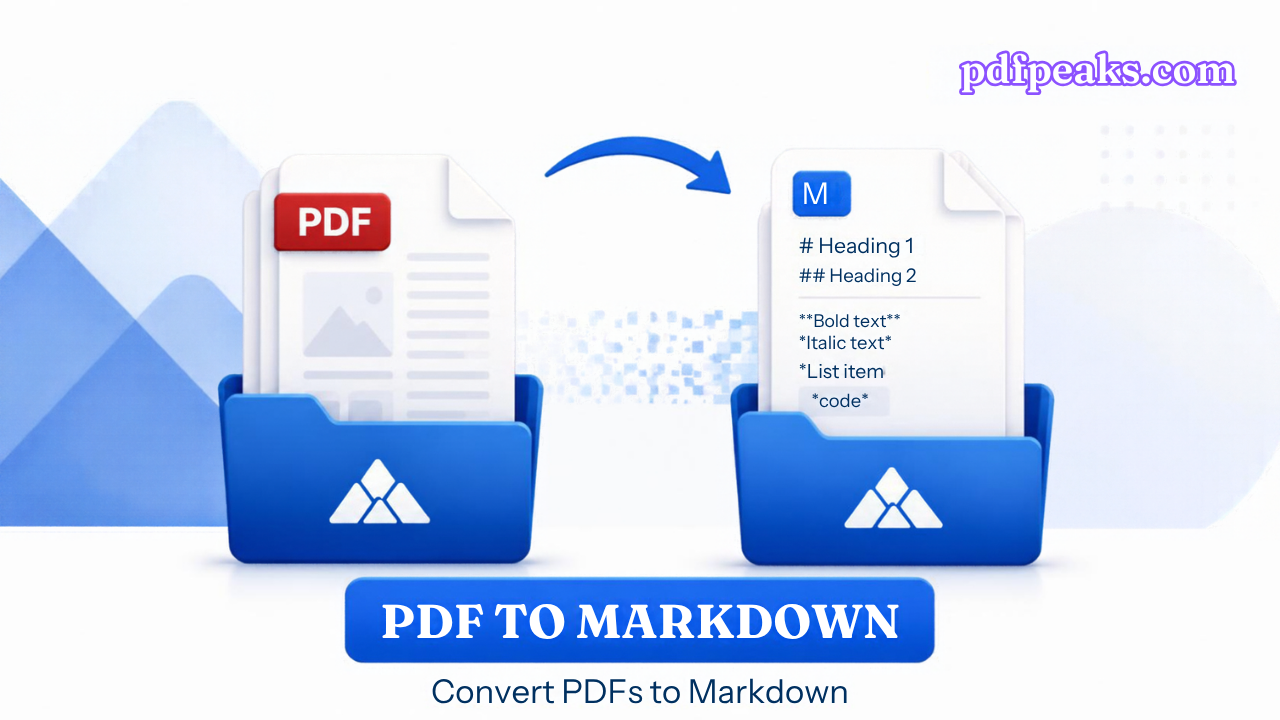
The quickest way to convert a PDF to Markdown is an online converter. Upload the file, preview the result and download a .md file. That works well for clean, text-based documents. Scanned pages need OCR first, and papers full of tables or two-column layouts may call for a heavier tool. This guide compares four methods so you pick the right one before you lose an afternoon to the wrong one.
If you just want the file, open the PDF to Markdown converter and come back if the result looks off.
What converting PDF to Markdown actually does
Markdown marks structure with plain symbols. A line starting with # is a main heading, ## is a section heading, a hyphen starts a list item, and square brackets followed by parentheses make a link. That is the whole idea, and it is why the format is everywhere in notes apps, documentation and Git repositories.
A PDF carries none of that. It stores each line of text at a coordinate on the page, along with fonts and sizes. Nothing in the file says “this is a heading” or “these two lines are one paragraph.” A converter has to infer structure from clues such as larger type, bold weight and spacing, and it has to work out reading order on pages where columns, sidebars and footnotes share the same space.
So “convert” really means “reconstruct.” Clean, single-column documents with consistent heading styles reconstruct well. Messy ones do not, and no tool is exempt from that.
Four ways to convert a PDF to Markdown
1. An online converter (fastest for one file)
Choose this when you have a file today, no developer setup and a text-based document. With the PdfPeaks PDF to Markdown converter:
- Upload the PDF.
- Tick Run OCR first only if the pages are scans.
- Click Convert to Markdown and read the preview.
- Download the .md file.
You get the text grouped into one section per page, with headings detected where the PDF’s formatting makes them clear. You do not get the page layout, images, charts or reliably converted tables. Expect a few minutes of tidying before you publish or hand the file to an AI tool.
The trade-off is privacy. Your file travels to a server, so do not use any online converter for documents you are not allowed to share.
2. A Python library (best for developers and batches)
If you are comfortable in a terminal, PyMuPDF4LLM is built for exactly this job. Install it with pip install pymupdf4llm, then run one line: import pymupdf4llm; open("out.md", "w", encoding="utf-8").write(pymupdf4llm.to_markdown("input.pdf")).
It is quick, it runs on your own machine so nothing is uploaded, and you can wrap it in a loop to process a whole folder. It works on PDFs that already contain text. Scanned files need an OCR step first.
3. Layout-aware tools: Docling, Marker and MinerU (best for papers and tables)
These tools analyse page layout, and some use machine-learning models, to find tables, columns and formulas, which is where simple extractors struggle. Docling, from IBM Research, is often recommended for complex documents and RAG pipelines. Marker is popular for high-fidelity output. MinerU is a common choice for academic papers and for Chinese, Japanese and Korean text.
The cost is setup. They are heavier to install, slower to run, and a GPU helps at scale. If your PDFs are research papers with equations and tables, that effort is worth it. For a manual or a report, it is overkill.
Two warnings that save time. Pandoc cannot read PDF as input. It converts between formats such as Word, HTML and Markdown, so it only helps once your content is already in one of those. And Microsoft’s MarkItDown is excellent for Word, Excel and PowerPoint, but reviews of its PDF output report weak heading and table handling. Test it on your own file before you build a pipeline around it.
4. Plain text plus manual cleanup (best for short, simple documents)
For a three-page memo, no pipeline beats copying the text and adding the symbols yourself. Run pdftotext -layout input.pdf output.txt from the Poppler command-line tools, or use the PdfPeaks Extract Text tool, then add # and hyphens where the structure needs them. It takes ten minutes and gives you complete control.
Which method should you pick?
- One clean document, no setup: use the online converter.
- Many documents with simple layouts: PyMuPDF4LLM in a script.
- Research papers with tables and equations: Docling, Marker or MinerU.
- Confidential files: convert locally with method 2 or 3.
- Scanned pages: add a text layer first, then use any method.
- A short memo: plain text and manual headings.
If you are unsure, start with the online converter on a few pages. Thirty seconds will show you how clean your particular PDF is, and whether you need a heavier tool.
Scanned PDFs and OCR
Try selecting a word in your PDF. If you cannot, the pages are images, and no converter can read them without optical character recognition.
In PdfPeaks, tick Run OCR first. You can also add a text layer separately with Make Searchable, and our guide on how to make a scanned PDF searchable walks through it. On your own machine, ocrmypdf input.pdf output.pdf adds a text layer, and you can convert the result with any method above.
OCR stumbles in predictable places: zero versus the letter O, the digit 1 versus a lowercase l, decimal points, small footnotes and crooked phone photos. A straight, sharp scan gives far better results than a tilted snapshot, so rescan if you can.
Cleaning the Markdown for AI, RAG and notes
Markdown helps AI work for a plain reason. Headings give you natural places to cut a long document into chunks, and the text is free of page layout. It does not make the content correct, and it cannot restore charts or images that were never extracted. A converted file is a draft until you have checked it.
- Delete repeated headers, footers and page numbers. They show up on every page, interrupt sentences and pollute search results and prompts.
- Rejoin broken lines and hyphenated words. A word split across two lines may arrive as two fragments.
- Check reading order on multi-column pages and fix any interleaved paragraphs.
- Make the heading levels consistent: one
#title,##for main sections,###for subsections. Chunkers, Obsidian outlines and GitHub tables of contents all depend on it. - Split long files by heading before you index them, and make each chunk understandable on its own. Note the document title and page in each chunk so answers can point back to the source.
- Verify numbers, names, dates and any quote you plan to rely on.
- Keep the original PDF. Anything visual lives there, not in the text.
For long documents, extract the chapter you need with Split PDF before converting. If you only need a summary rather than the full text, the AI Summarizer works directly on the PDF.
Using the result in Obsidian, GitHub and docs
For Obsidian, save the .md file into your vault folder and it appears as a note. Tidy the headings so the outline works, split long documents into several notes, and add your own links and tags. A file named Chapter 3 - Pricing.md is much easier to find later than output.md.
For GitHub or a docs site, commit the file and review it like code. Converters rarely detect code, so re-fence code blocks by hand with triple backticks, and check every command, file path, flag and version number against the PDF. A single wrong character in a command makes an instruction misleading. Make sure you have the right to republish the material.
Tables, equations and columns
A PDF table is usually text placed at coordinates, not a real grid, so converters often flatten it into lines. Markdown pipe tables also need a header row. For numeric tables, convert with PDF to Excel, fix the columns there and paste the cleaned values into your Markdown.
Equations contain superscripts, subscripts and symbols that plain extraction scrambles, so compare each one with the source. For two-column papers, expect paragraphs to interleave, and move them back into order by hand. If the visual layout is essential to understanding the document, keep the PDF next to your Markdown file.
Fixing common problems
- Empty file: the PDF is probably scanned. Use OCR and convert again.
- Missing headings: the PDF may use decorative styling. Add
#markers by hand. - Scrambled order: look for columns, sidebars or footnote boxes, then reorder.
- Garbled characters: check the OCR, or try a cleaner scan.
- Protected file: if you are authorised to open it, remove the password with Unlock PDF first.
- Need an editable Word file instead: use PDF to Word.
Quick summary
A PDF stores positioned text, not structure, so every conversion is a reconstruction. Use an online converter for one clean file, PyMuPDF4LLM for batches, Docling, Marker or MinerU for papers with tables, and plain text for short memos. Run OCR on scans, clean the output before you give it to an AI tool, and keep the original PDF.
Ready to try it? Open the free PDF to Markdown converter and check the preview before you download.
No comments yet. Start the discussion.