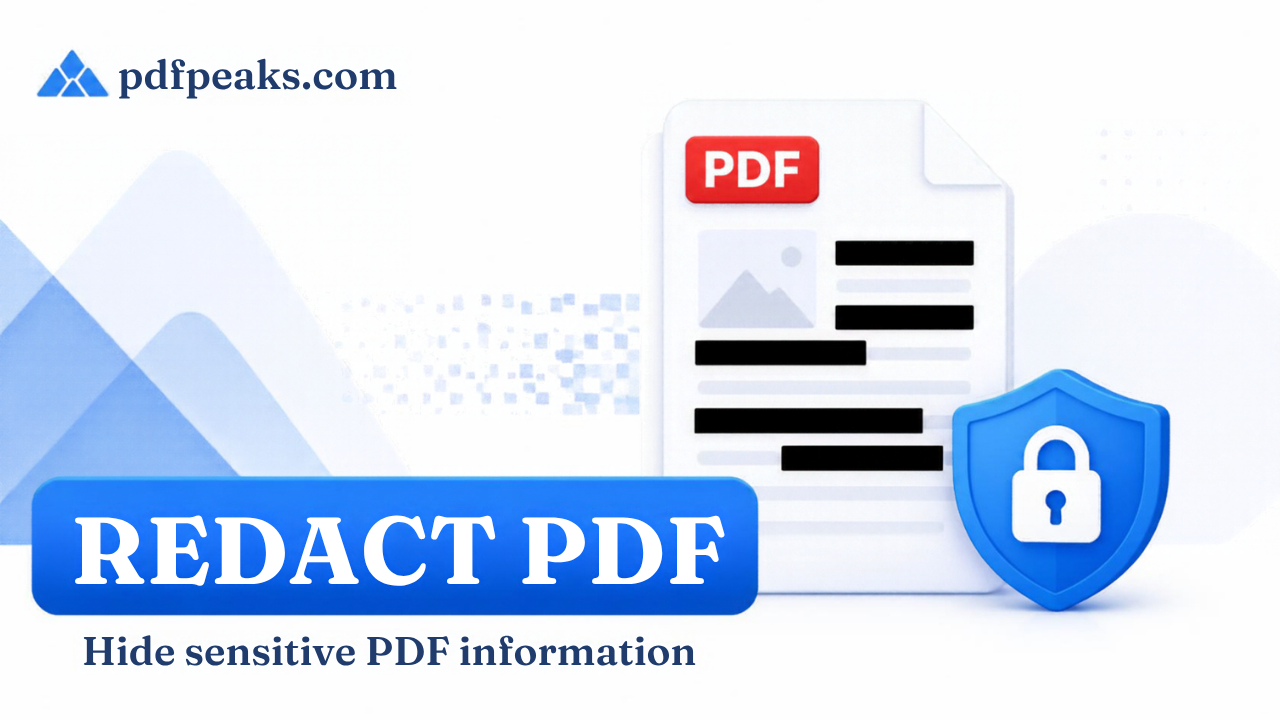
How to Redact a PDF Online for Free (Permanently Remove Sensitive Info)
Redact a PDF online for free — permanently black out names, ID numbers, account details, addresses, or signatures before you share a document. No Adobe, no software install, no watermark.
Use the free tool now — skip the reading if you already know what you need.
Quick answer
To redact a PDF online for free, open the Redact PDF tool, upload your file, draw a box over each piece of text or image you want gone, apply the redactions, and download the result. Unlike drawing a black box in a regular PDF viewer, this permanently deletes the underlying text and image data — it doesn't just cover it up.
If you've ever had to send a bank statement to a landlord, a contract to a new client, or a scanned ID to an online form, you've probably hesitated for a second before hitting send. Half the page has information nobody but you needs to see — account numbers, a signature, a home address, maybe a salary figure buried in a table. Blacking that out by hand in a PDF viewer usually doesn't remove it at all. It just draws a box on top, and the text underneath is still there the moment someone selects it, copies it, or opens the file in a different app.
That's the difference between hiding text and redacting it. This guide covers how to actually do the second one, for free, in your browser.
Redact Your PDF Now
Use the Redact PDF tool to permanently remove sensitive areas from your document.
Upload your file, mark the sections you want gone, and download a clean copy.
The process is simple:
- Open the Redact PDF tool.
- Upload the PDF you want to edit.
- Draw a box over each piece of text or image you want removed.
- Apply the redactions.
- Download your redacted PDF.
Once a redaction is applied, the underlying text and image data in that area is gone from the file — not just covered up.
Why "Blacking It Out" Usually Doesn't Work
Most people's first instinct is to open a PDF, draw a black rectangle or highlight over the sensitive part, and call it done. The problem is that in a lot of free PDF editors, that black box is a separate object sitting on top of the page. The original text is still stored in the file underneath it.
This becomes a real problem when the document is:
- Opened in a different PDF viewer that doesn't render the box the same way
- Copied and pasted into another document
- Run through an OCR or text-extraction tool
- Converted to Word, Excel, or plain text
- Opened by someone who selects "select all" and copies the page
In any of those cases, the "hidden" information can resurface. There have been well-publicized cases of government agencies and companies releasing documents they believed were redacted, only for journalists or researchers to copy the black boxes out and reveal the text underneath. True redaction removes the content itself, not just its visibility on screen.
What Redaction Actually Removes
Proper redaction deletes the selected text, image data, or metadata from the document rather than layering something over it. When you redact a section of a PDF correctly:
- The text in that area is no longer part of the file's content
- Copy-pasting from that region returns nothing
- Searching the document won't find the redacted words
- Converting the file to another format won't reveal it
- The visual black box (or your chosen cover) simply marks where content used to be
This is the standard you want for anything genuinely sensitive — not a cosmetic fix, a permanent one.
How to Redact a PDF Online for Free
Step 1: Open the Redact PDF Tool
Go to the PdfPeaks Redact PDF tool in your browser. There's nothing to install, and it works the same way on a laptop, tablet, or phone.
Step 2: Upload Your Document
Select the PDF you need to clean up. Give it a moment to upload and load into the editor.
Step 3: Mark What Needs to Go
Draw a box over each section you want permanently removed. Common things people redact include:
- Bank account and card numbers
- National ID, CNIC, or passport numbers
- Home addresses
- Phone numbers
- Full names of third parties mentioned in a document
- Salary figures
- Signatures
- Medical or case reference numbers
- Email addresses
- Confidential clauses in a contract
Go page by page. It's easy to redact the obvious spot on page one and forget the same detail repeats on page four of a multi-page statement or contract.
Step 4: Apply the Redactions
Once every section is marked, apply the redactions. This is the step that actually strips the underlying content, not just the earlier marking stage.
Step 5: Download and Double-Check
Download the redacted file. Before you send it anywhere, open the new PDF and try to select text over the redacted areas, or search the document for a word you just removed. If the redaction worked properly, nothing will be selectable or searchable in that spot.
What Should You Redact Before Sharing a PDF?
Not every document needs the same treatment, but a few categories come up constantly:
Financial Documents
Bank statements, salary slips, invoices, and tax records often need account numbers, balances, or client names removed before they're shared with a third party who only needs to verify part of the document. If you're building a salary slip from scratch rather than redacting an existing one, the Salary Slip generator can create a clean version with only the fields you choose.
Government and ID Documents
CNIC, passport, driver's license, and visa scans usually contain a full ID number even when only proof of identity type is required. Redact the number if the recipient doesn't need it. If you're scanning the ID for the first time, our guide to scanning an ID card to PDF covers getting a clean front-and-back copy before you redact it.
Contracts and Agreements
Legal documents shared for reference, court filings, or samples given to a new business partner may contain clauses, figures, or third-party names that don't need to travel with the file.
Medical and HR Records
Patient information, employee reviews, or case files frequently need names, dates of birth, or record numbers removed before they're shared for research, audits, or general reference.
Scanned Correspondence
Old emails or letters converted to PDF sometimes include personal information from other people entirely, not just the document's main subject.
Redaction vs. Password Protection: They're Not the Same Thing
It's easy to assume that if a PDF is password protected, the sensitive information inside is safe. That's only half true.
Password protection controls who can open the file. Once someone has the password, they see everything — including whatever you wanted to keep private.
Redaction permanently removes specific content from the document, regardless of who eventually opens it.
If your goal is to share a document with someone while hiding certain parts from them specifically, password protection alone won't do that. You need to redact the sensitive sections first. From there, you can optionally add a password on top using the Protect PDF tool for an extra layer of access control — our password protection guide walks through that step in more detail. If you ever need to remove a password from a file you own, the unlock PDF guide covers that process.
A practical rule: redact what the recipient shouldn't see at all, then password-protect the file if you also want to control who opens it in the first place.
A Practical Workflow for Sharing Sensitive Documents
If you're preparing a document that needs to go out to someone outside your organization, this order tends to work well:
1. Merge Files First
If you're sending multiple related pages or scans, combine them into a single PDF with the Merge PDF tool before you start redacting. It's faster to redact one file than to repeat the process across several. Our guide to merging PDFs online walks through the steps if you need it.
2. Redact Sensitive Sections
Use the Redact PDF tool to permanently remove anything the recipient doesn't need to see.
3. Compress if the File Is Large
Scanned documents can get heavy. If the redacted file is too large for email or a portal, run it through Compress PDF before sending. See our guide to compressing a PDF without losing quality for the right settings.
4. Password Protect the Final Version
If you also want to restrict who can open the file, add a password as the last step using Protect PDF.
5. Send the Password Separately
If you do password-protect the file, send the password through a different channel than the document itself — a text message or a call, rather than the same email.
Can You Redact a Scanned PDF?
Yes, but there's a wrinkle. A scanned PDF is really just an image of a page — there's no selectable text underneath unless OCR has been run on it. Visually, you can still draw a box over the area you want hidden and apply the redaction, and that will permanently alter the image data in that region.
If the scan has already been made searchable using an OCR tool like Make Searchable, redacting a section should also remove the corresponding hidden text layer, not just the visible image. When in doubt, redact the document before running OCR on it, so there's no text layer left behind to worry about. Our guide to making a scanned PDF searchable explains how that OCR layer works in more detail.
Common Redaction Mistakes to Avoid
- Redacting only the first mention. Names, numbers, and addresses often repeat throughout a document. Check every page — the Organize PDF tool can help you review and reorder pages first if the file is long.
- Forgetting metadata. Some PDFs carry author names, company details, or comments in their metadata even after the visible content is cleaned. If the file's origin matters, check the document properties too.
- Sending the original alongside the redacted copy. Keep the original safe on your own device, but make sure you're actually attaching the redacted version when you share it.
- Assuming a highlight or comment counts as redaction. Annotations and comments in most PDF viewers sit on top of the page and don't remove anything underneath.
- Skipping the final check. Always try to select or search the redacted area in the downloaded file before sending it out. You can also run it through Extract Text — if the redacted section shows up in the extracted text, the redaction didn't fully take.
Frequently Asked Questions
Is redacting a PDF online actually free?
Yes. The Redact PDF tool on PdfPeaks lets you permanently remove sensitive sections from a document at no cost, with no signup required.
Does redaction remove the text completely, or just cover it?
Proper redaction removes the underlying text and image data from that section of the file, not just the visible appearance on the page.
Can I redact a PDF on my phone?
Yes. The tool runs in your mobile browser on Android and iPhone, so you don't need a desktop computer.
What's the difference between redacting and password protecting a PDF?
Redaction permanently deletes specific content so nobody who opens the file can see it. Password protection controls who is allowed to open the file at all, but doesn't hide anything from someone who has the password. See the password protection guide for more on that distinction.
Can I redact a scanned document?
Yes. You can draw a box over the area you want removed on a scanned page. If the scan has been made searchable with OCR, the hidden text layer under that area should be removed along with the image.
Will the redacted text show up if someone converts the PDF to Word or copies the page?
No, not if the redaction was applied properly. The content is removed from the file itself, so converting or copying that section returns nothing — including if the file is later run through PDF to Word.
Clean Up Your PDF Before You Share It
Before sending a document outside your own hands, it's worth a quick pass to check what's actually on the page versus what the recipient needs to see. A short checklist:
- Merge related pages into one file if needed.
- Redact account numbers, ID numbers, addresses, and any third-party names.
- Compress the file if it's too large to send.
- Add a password if you also want to restrict who can open it.
- Do a final search-and-select check on the downloaded copy.
Redact Your PDF Online
Use PdfPeaks to permanently remove sensitive information from your PDF, right in your browser, for free.
Explore the full collection of PDF tools to merge, compress, convert, protect, unlock, and redact your documents, or browse all guides for more step-by-step walkthroughs.
No comments yet. Start the discussion.