You have a PDF with a photo, a logo or a chart in it, and you want that picture as its own file. Right-clicking does nothing useful in most PDF viewers. A screenshot works, but it comes out soft and you spend five minutes trimming the edges. There are better ways.
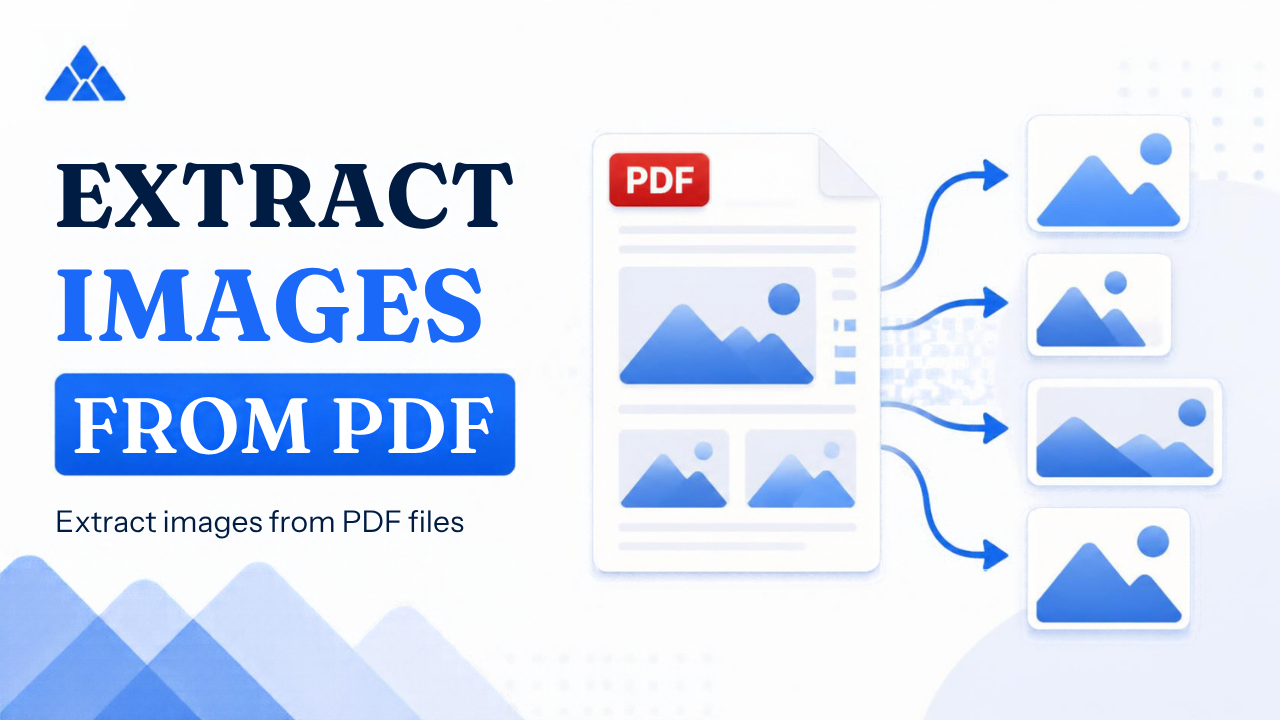
I will walk through six of them, from the fastest to the most technical, and say when each one lets you down. If you only want the short version, upload the file to the PdfPeaks Extract Images from PDF tool and download the results as PNG files or one ZIP. Everything below is for the cases where that is not enough, or where you would rather not use an online tool.
The six methods at a glance
| MethodBest forGets every image?CostQuality | ||||
| Online extractor | A whole document, any device | Yes | Free | Limited by what the PDF stored |
| Copy from a PDF reader | One or two pictures | No | Free | Usually good |
| Screenshot | Quick one-offs | No | Free | Lowest |
| Acrobat Pro export | People who already pay for Adobe | Yes | Paid | Limited by what the PDF stored |
| Open the PDF in Word | Light editing as well | Partly | Paid or trial | Varies |
| pdfimages command | Developers and batches | Yes | Free | Keeps original formats |
What "saving an image from a PDF" actually means
Three different jobs get called by the same name, and most complaints of the "it doesn't work" kind come from using one method for another job.
The first is extracting an embedded image. A PDF made from a brochure or a Word report stores each photo as a separate image object inside the file. Extraction copies those objects out. You get the picture with no page around it, at whatever resolution the PDF kept.
The second is rendering a page as an image. This takes the whole page, text and all, and turns it into one picture, like photographing it. That is what PDF to JPG and PDF to PNG do. It is the right choice when you want the page, and the wrong one when you want the photo on it.
The third is grabbing vector graphics. Logos, charts and diagrams are often drawn with lines and curves instead of stored as pixels. They are not images in the technical sense, so an image extractor will not find them. The usual workaround is to export the page and crop.
Keep those three in mind and the rest of this guide is easy to follow.
Method 1: Use an online extractor
This is the fastest way to get everything out of a document, and it works the same on a laptop and a phone.
- Open the Extract Images from PDF tool.
- Upload your PDF.
- Wait while it scans each page. A short report takes seconds. A brochure with big photos takes longer.
- Check the gallery to confirm it found the pictures you expected.
- Download single images as PNG files, or take the whole set as a ZIP.
The limits are worth knowing. The tool finds embedded pictures, so a PDF made only of text and drawn shapes gives you an empty gallery. It cannot restore detail that the PDF threw away. And because the file is uploaded, I would not run a CNIC scan or a bank statement through any online tool on a shared computer.
Method 2: Copy the image from a PDF reader
If you need one picture and you already have the PDF open, copy and paste is enough.
In the free Adobe Acrobat Reader, pick the Select tool, click once on the picture so it highlights, then right-click and choose Copy Image. Paste it into Paint, Word, Canva or any image editor and save it.
On a Mac, open the file in Preview, choose Rectangular Selection from the Tools menu, drag a box around the picture and press Cmd and C. Then choose File, New from Clipboard, and save the result. Preview copies the area as it appears on screen, so zoom in first if you want a sharper copy.
Browser viewers are the weak spot. In my experience Chrome and Edge rarely give you a Save Image option for a PDF, which is why people end up with screenshots. If the browser is all you have, use Method 1.
Method 3: Take a screenshot (last resort)
Sometimes a screenshot is the only thing that works, for example when the PDF is locked against copying. On Windows press the Windows key, Shift and S, then drag around the picture. On a Mac press Cmd, Shift and 4. On a phone, use the usual button combination and crop afterwards.
A screenshot is only as sharp as your screen shows it. A photo that is 3000 pixels wide inside the PDF may be captured at 1200 pixels because that is how much room it takes on your display. Zoom the PDF in until the picture fills the screen before you capture, crop tightly, and save as PNG. It is still the softest option on this list.
Method 4: Export from Acrobat Pro
If you already pay for Adobe Acrobat Pro, it can export every image in a document. Open the file, choose Export a PDF, pick Image as the format, and look in the settings for the option that exports all images. Menu names move around between versions, so treat that path as a guide and not an exact script.
This works well and keeps the images as stored. The only reason to skip it is cost. Buying a subscription to pull pictures out of one brochure is hard to justify when Method 1 does the same job for nothing.
Method 5: Open the PDF in Word
Word can open a PDF and convert it into an editable document. Go to File, Open, pick the PDF, and let Word rebuild it. Once it finishes, right-click any picture and choose Save as Picture.
This suits simple documents where you may also want to edit the text. Complicated layouts tend to come out messy, and pictures are sometimes split into pieces or shifted from where they belonged. Treat it as a fallback when you already have Word and only need one or two images.
Method 6: Use the pdfimages command
For developers and anyone processing many files, pdfimages is the cleanest option. It is part of the free Poppler utilities, which you can install with your package manager, for example sudo apt install poppler-utils on Ubuntu or brew install poppler on a Mac.
To see what is inside a file before extracting anything:
pdfimages -list report.pdfTo save every image, keeping JPEGs as JPEGs:
pdfimages -all report.pdf pics/imgYou will get files named img-000, img-001 and so on in the pics folder. This is the method to script if you handle hundreds of PDFs. It is also the least friendly for a one-off job.
How to save images from a PDF on your phone
Phones are where the screenshot habit is strongest, mostly because PDF apps on mobile rarely offer anything better. A browser-based extractor fixes that. Open the tool in Chrome or Safari, choose the PDF from your files, wait for the gallery, and download the images or the ZIP.
Downloaded files go to your Downloads folder on Android or to the Files app on an iPhone. A ZIP opens with a tap in both. If you only need one picture and the PDF is open in front of you, a screenshot is acceptable, but zoom in first.
One practical tip for slow mobile data: very large PDFs take a while to upload. If you can, wait for Wi-Fi.
Why the extracted image looks blurry
People often blame the extraction method for a blurry result. In most cases the blur was already inside the PDF.
PDFs store images at a fixed size. If whoever made the file inserted a small picture and stretched it, the extracted copy is small. If they exported with a low-quality setting, the picture was compressed before you ever saw it. And if the file was compressed afterwards, to get under an upload limit or an email cap, the images inside were downsampled to save space. No extractor can undo that, because the missing detail is gone from the file.
You cannot add real detail afterwards. Enlarging a small image makes it larger, not clearer. If you need a sharp copy of a photo, ask whoever sent the PDF for the original image files. If it is your own document, keep an uncompressed copy before you run it through Compress PDF for submission.
When there is nothing to extract
An empty gallery means one of three things, and each has a fix.
The PDF is a scan. A scanned page is stored as a single large image, so extracting returns page-sized pictures and not the separate photos printed on them. Crop the page image to isolate the photo. If you need the words, that is a job for OCR, not image extraction.
The graphics are vector. Charts, logos and diagrams from design software are often drawn, not stored. Export the page as a PNG with PDF to PNG and crop the area you want. For a logo you will use again, it is worth asking for the original vector file.
The file is locked. A password protected PDF cannot be read until it is opened. If you are allowed to open it, use Unlock PDF first and then extract from the unlocked copy.
If you actually want the words in the document rather than the pictures, use Extract Text from PDF.
Where this comes up in Pakistan
A few situations I see again and again. Students pull figures out of a thesis or a research paper for a presentation, with the source credited. Small shop owners receive supplier catalogues as PDF, often forwarded on WhatsApp, and need the product photos for a listing. Housing society and real estate brochures arrive as PDF, with the best photos locked inside. And school and university notices are sometimes circulated only as a PDF with the logo and campus photos embedded.
In all of these, the sensible first step is to find out whether the pictures are stored images or drawn graphics. If an extractor returns them, you are done in a minute. If it does not, export the page and crop. Do not compress the PDF first. WhatsApp already recompresses files on the way, so the copy you receive may be softer than the original, and compressing it again makes it worse.
PNG or JPG: what to do with the files you get
Once the images are out, you will usually end up with a mix of formats, and it helps to know which to keep. PNG is lossless and handles logos, charts and screenshots cleanly, including transparent backgrounds. JPG is smaller and suits photographs, but every time you re-save a JPG it loses a little more detail.
A simple rule works well. Keep the extracted file as it is for as long as you are editing. Convert to JPG only at the very end, when you need a small file for a website, an email or an upload form, and do it once. Never convert a JPG to PNG expecting it to improve, because PNG cannot restore what JPG already discarded. It only makes the file bigger.
Also check the pixel size before you promise anything to a client or a printer. A picture that looks fine on a phone can be far too small for a printed banner. Open its properties and look at the width and height in pixels first.
Before you reuse the image
Extracting a picture does not change who owns it. Photos in a brochure usually belong to a photographer or a company, and a logo is a trademark. Use pictures from your own documents, files you have permission to use, or material under a licence that allows reuse, and credit the source where the licence asks for it.
Once you have the file, you may want to tidy it up. Resize Image shrinks a large picture for a website or a form with a size limit. Remove Background gives a logo or product photo a transparent background. And Image to PDF puts a set of pictures back into one document when you need to send them together.
Which method should you use?
If you need many images or the whole document, use an online extractor. If you need one picture and the PDF is already open in Acrobat Reader, copy it. If the file is locked against copying and nothing else works, take a screenshot and accept the softer result. If you already have Acrobat Pro or Word, use them. If you process files in bulk, learn the pdfimages command.
For most people, most of the time, the first option is the one that saves the most effort. Try the PdfPeaks Extract Images from PDF tool with your file and see what it finds.
No comments yet. Start the discussion.