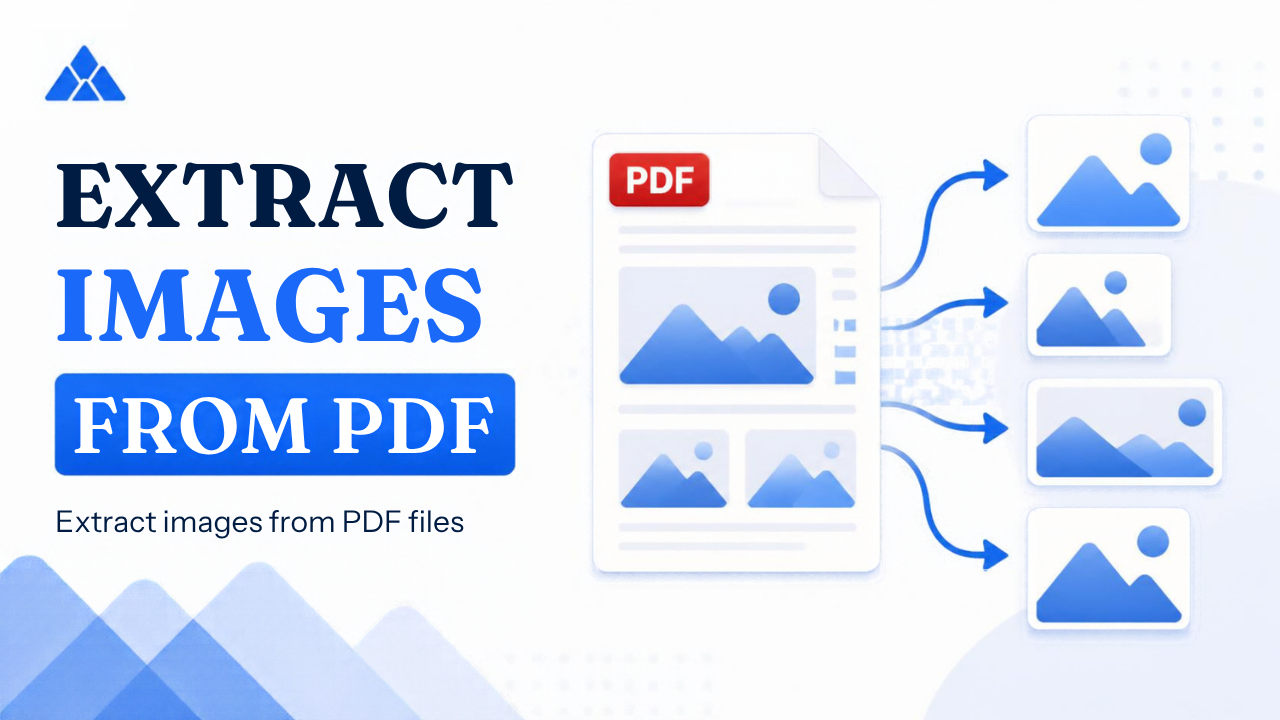
Extract Images from PDF
Pull embedded photos and graphics out of a PDF (not page rasterization)
This tool extracts images stored inside the PDF.
To export each page as a picture, use
PDF to JPG or
PDF to PNG.
Drop PDF here
or select a file from your device
-
-
Loading...
Extracting images...
Guide
Extract Images from PDF Online — Complete Guide
Pull photos, logos, and figures that are embedded inside a PDF — not full-page screenshots. PdfPeaks returns PNG files (or a ZIP when there are many).
How It Works
Upload
Choose a PDF that embeds photos or graphics.
Extract
Embedded image XObjects are saved as PNG files.
Download
Get a single image or a ZIP of all images.
Security & Privacy
Files are encrypted in transit and deleted after processing — see our Privacy Policy for details.
Common Use Cases
- Design reuse: Recover logos and product shots from a brochure PDF.
- Archives: Pull figures out of reports without rasterizing pages.
- Not page export: For page pictures use PDF to JPG.
- Vector-only PDFs: May have no embedded images to extract.
- Privacy: Files are processed temporarily and removed after download.
Tips for Best Results
If extraction finds nothing, the PDF likely has no image XObjects — use PDF to JPG/PNG for page rasterization instead. Output: PNG or ZIP.
Frequently Asked Questions
Embedded image objects inside the PDF (photos, logos, figures) — not full page screenshots.
Use PDF to JPG or PDF to PNG to rasterize pages.
The PDF may be text/vector-only with no image XObjects.
PNG files, or a ZIP when multiple images are found.
Yes for standard use.